Developing a JPG-to-Excel converter using Python doesn’t have to be complex. This blog post is for you if you don’t know where to begin to develop a converter that turns images containing tabular data into Excel sheets. We’ll walk you through the process step by step so you don’t have any doubts left. Read till the end to get the most out of this tutorial.
Prerequisites
Before you start things, first you should make sure you have all that it takes to develop such a converter. You need to ensure the following resources are installed on your device:
Python – Skip it if you already have this installed on your device. If not, download it from python.org.
Tesseract OCR – This will be responsible for extracting visible text from images. It’s an OCR engine that is dedicated to carrying out such tasks. Download and install it.
Python Libraries – There will be some libraries that you will need along the way to facilitate JPG-to-Excel conversions.
- PIL/Pillow for basic-level image handling.
- OpenCV or cv2 for image preprocessing.
- Pytesseract for connecting Python with Tesseract OCR.
- Pandas for organizing the extracted tabular data and turning it into an Excel file.
Now, run the following in your terminal to install the above-mentioned libraries:

Step 1 – Import the Libraries
After installing the libraries, the next step is to import all the required libraries. Refer to the following code snippet:
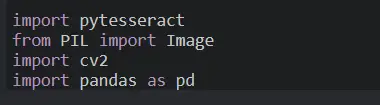
This will load everything required to process images to WebP, execute OCR, and convert the extracted tabular data into an Excel file.
Step 2 – Configure Tesseract Path
Python and Tesseract don’t always connect automatically. If Tesseract is not available in your system path, you will have to determine its path manually. Here’s the code to ensure this:

You can change the path based on your system preferences. The above line tells Python where the tesseract.exe file is stored on your device. There’s no way you can skip this step, as Python will not be able to use Tesseract.
Step 3 – Load the Image
Now it’s time to load the image you want to convert. See the following code snippet to execute this:
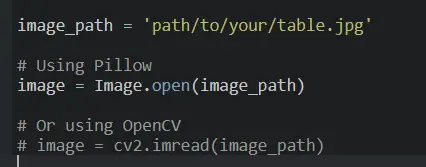
Here, you need to replace “path/to/your/table.jpg” with the exact path of your required file. First off, we store the image file path in image_path. The function Image.open() will ensure the file loads using Pillow. Alternatively, cv2.imread() will load it with OpenCV. Both of them are valid. OpenCV is ideal if you plan to preprocess images, while Pillow is a simpler option.
Step 4 – Extract Tabular Text with OCR
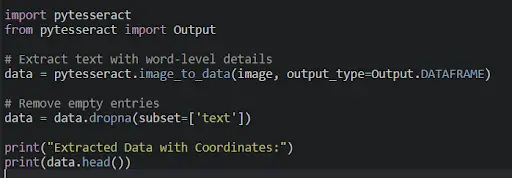
The next step involves extracting the text from the image using Tesseract OCR. We won’t pull out the text as a plain string; instead, we’ll use image_to_data(), which also provides us with each word’s position. This will make it easy to rebuild columns and rows for Excel. Here’s the code you’ll need to execute:
Step 5 – Organize Extracted Data into Rows and Columns
Once you have the OCR data with coordinates, the next step is to categorize the text into structured rows and columns. This step is important because Excel needs properly organized data, not just raw and scattered words.
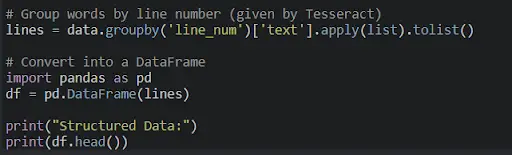
Step 6 – Convert the Tabular Data into Excel
Now the data is organized in tabular format. The final step is to convert it into an Excel file.

As you can see in the above code snippet, to_excel() writes the DataFrame into an Excel file. The function index=False eliminates row numbers. header=False avoids adding headers because the data is already in structured form. After you run this, see your working directory. You will find a new Excel file with the extracted table. This is how you can develop a JPG-to-Excel converter using Python.
A Real World Example of a JPG to Excel Converter
Imagetotext.info’s JPG to Excel Converter is a real example that uses a similar approach. You just need to upload an image into the tool, and it will take a few seconds to return extracted tabular data that is ready to be saved as an Excel file. Here’s how the tool delivers the final output:
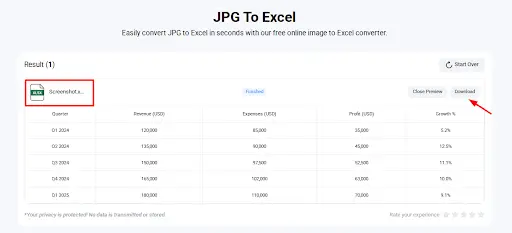
This is how your final script/tool will operate. However, you can customize it to add more features and functions to set it apart from the competition.
Final Thoughts
Building a JPG to Excel converter using Python is easy when you’re doing it in the right way. We have explained it in a step-by-step guide. All you need is Python, Tesseract OCR, and a few relevant libraries. Follow all the above steps carefully, and you will have a converter that pulls out editable tabular data from images and converts it into an Excel file. We have also discussed a real example of such a converter to provide you with a clear picture of how such a converter works.
Developing a JPG-to-Excel converter using Python doesn’t have to be complex. This blog post is for you if you don’t know where to begin to develop a converter that turns images containing tabular data into Excel sheets. We’ll walk you through the process step by step so you don’t have any doubts left. Read till the end to get the most out of this tutorial.
Prerequisites
Before you start things, first you should make sure you have all that it takes to develop such a converter. You need to ensure the following resources are installed on your device:
Python – Skip it if you already have this installed on your device. If not, download it from python.org.
Tesseract OCR – This will be responsible for extracting visible text from images. It’s an OCR engine that is dedicated to carrying out such tasks. Download and install it.
Python Libraries – There will be some libraries that you will need along the way to facilitate JPG-to-Excel conversions.
Now, run the following in your terminal to install the above-mentioned libraries:
Step 1 – Import the Libraries
After installing the libraries, the next step is to import all the required libraries. Refer to the following code snippet:
This will load everything required to process images to WebP, execute OCR, and convert the extracted tabular data into an Excel file.
Step 2 – Configure Tesseract Path
Python and Tesseract don’t always connect automatically. If Tesseract is not available in your system path, you will have to determine its path manually. Here’s the code to ensure this:
You can change the path based on your system preferences. The above line tells Python where the tesseract.exe file is stored on your device. There’s no way you can skip this step, as Python will not be able to use Tesseract.
Step 3 – Load the Image
Now it’s time to load the image you want to convert. See the following code snippet to execute this:
Here, you need to replace “path/to/your/table.jpg” with the exact path of your required file. First off, we store the image file path in image_path. The function Image.open() will ensure the file loads using Pillow. Alternatively, cv2.imread() will load it with OpenCV. Both of them are valid. OpenCV is ideal if you plan to preprocess images, while Pillow is a simpler option.
Step 4 – Extract Tabular Text with OCR
The next step involves extracting the text from the image using Tesseract OCR. We won’t pull out the text as a plain string; instead, we’ll use image_to_data(), which also provides us with each word’s position. This will make it easy to rebuild columns and rows for Excel. Here’s the code you’ll need to execute:
Step 5 – Organize Extracted Data into Rows and Columns
Once you have the OCR data with coordinates, the next step is to categorize the text into structured rows and columns. This step is important because Excel needs properly organized data, not just raw and scattered words.
Step 6 – Convert the Tabular Data into Excel
Now the data is organized in tabular format. The final step is to convert it into an Excel file.
As you can see in the above code snippet, to_excel() writes the DataFrame into an Excel file. The function index=False eliminates row numbers. header=False avoids adding headers because the data is already in structured form. After you run this, see your working directory. You will find a new Excel file with the extracted table. This is how you can develop a JPG-to-Excel converter using Python.
A Real World Example of a JPG to Excel Converter
Imagetotext.info’s JPG to Excel Converter is a real example that uses a similar approach. You just need to upload an image into the tool, and it will take a few seconds to return extracted tabular data that is ready to be saved as an Excel file. Here’s how the tool delivers the final output:
This is how your final script/tool will operate. However, you can customize it to add more features and functions to set it apart from the competition.
Final Thoughts
Building a JPG to Excel converter using Python is easy when you’re doing it in the right way. We have explained it in a step-by-step guide. All you need is Python, Tesseract OCR, and a few relevant libraries. Follow all the above steps carefully, and you will have a converter that pulls out editable tabular data from images and converts it into an Excel file. We have also discussed a real example of such a converter to provide you with a clear picture of how such a converter works.
Best Online Spanish Classes in India
Best Online German Classes in India
Best Online French Classes in India (2026)
Best 5 TEF Canada Classes in Edmonton (2026 Complete Guide)
Top 7 TEF French classes in Calgary: Guide 2026
Best 6 TEF French Classes in Winnipeg (2026 Guide)
Request a Call Back
Related Posts
Best 5 TEF Canada Classes in Edmonton (2026 Complete Guide)
Read MoreTEF Canada classes in Edmonton are one of the fastest ways to boost your French score and add valuable CRS points to your Express Entry Profile. With one of Alberta’s most active Francophone communities and a steady stream of newcomers, Edmonton now offers more choices than ever in person language schools, community organisations, private […]
Top 7 TEF French classes in Calgary: Guide 2026
Read MoreSearching for TEF French classes in Calgary? The right TEF preparation course can help you improve your French language skills, prepare for the exam’s listening, speaking, reading, and writing sections, and get a good TEF score. Whether you’re looking to enhance your Express Entry profile or to satisfy French-language requirements for Canadian immigration. Here is […]
Best 6 TEF French Classes in Winnipeg (2026 Guide)
Read MoreLooking for the TEF French classes in Winnipeg? Whether you are aiming to boost your Express Entry score, qualify for a Manitoba immigration pathway, or prove your French citizenship, the right French preparation can help you reach your goals. The TEF exam tests your listening, reading, speaking, and writing skills. By preparing carefully, you can […]
Best TEF Preparation Course Chandigarh for Canada Immigration
Read MoreA TEF preparation course in Chandigarh can assist candidates in enhancing their French skills and getting ready for the TEF Canada exam. The Test d’évaluation de français (TEF) is a test of French language proficiency for Canadian immigration and other applications. Structure lessons, practise with mock tests, and get help from experts to become […]
6 Best TEF Preparation course in Canada 2026 Guide
Read MoreEnrolling in a TEF preparation course in Canada can help candidates become familiar with the TEF exam format and strengthen their French language skills. The TEF Canada is a crucial French language proficiency test for anyone applying through a Canadian immigration pathway. Many institutions and online training providers offer French language training for exam […]
Meet Our Conversion Expert